
TEVO DOM: a Level 2 depth of market for NinjaTrader 8
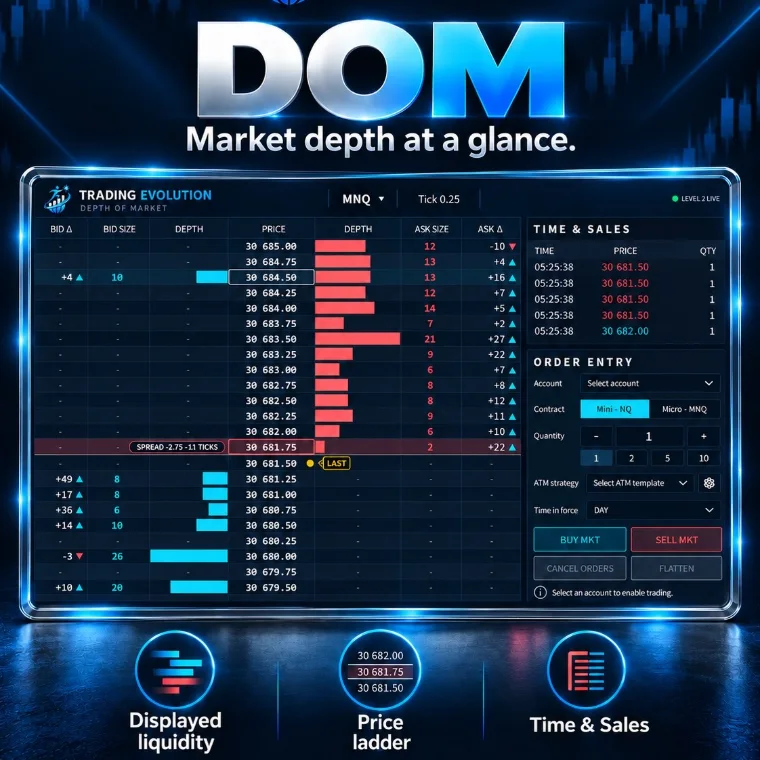
TEVO DOM opens a full depth of market in its own window: price ladder, bid and ask depth, size changes, last price, Time & Sales and market order entry. You pick the market inside the window, and orders are only sent after you select an account and confirm.
The download takes two steps, from the “Free indicators” section of the home page.
- Platform
- NinjaTrader 8
- File
- NinjaScript (.cs), readable source code
- Calculation
- Real-time window (Level 2)
- Price
- Free
- File updated on
- 8 October 2026
What the indicator does
- Separate window. Added to a chart, the indicator opens the DOM in its own window running on its own thread, so the chart is not slowed down. It shows the chart’s market, or the one you pick inside the window (click the instrument name).
- Price ladder. Columns BID Δ, BID SIZE, DEPTH, PRICE, DEPTH, ASK SIZE, ASK Δ. In static mode (default) the rows stay still and only recenter when price nears the top or bottom; the mouse wheel scrolls the ladder, a middle click or double click recenters it.
- Size changes. BID Δ and ASK Δ show orders added (+) or pulled (−) at each price over the last 10 seconds. Size taken by trades is not counted, so you only see additions and cancellations.
- Time & Sales. Every trade with its time, price and quantity, coloured by side; trades of 20 contracts or more are highlighted (adjustable).
- Order entry. Account (never saved), contract, quantity (1, 2, 5, 10 buttons), ATM strategy and time in force; BUY MKT, SELL MKT, CANCEL ORDERS and FLATTEN buttons. Buy, sell and flatten need a second click within 3 seconds.
Data and markets
- For markets that publish market depth in NinjaTrader: futures (ES, NQ, MNQ, CL, GC…), and any instrument for which your connection supplies Level 2.
- The DOM works in real time: there is no order book history, and Time & Sales starts when the window opens.
- The display updates on every book change, capped at 30 frames per second by default (Refresh setting).
Requirements: what is free and what may cost money
- NinjaTrader 8, a desktop platform for Windows. The indicator is free; NinjaTrader is third-party software with its own terms, and it may cost money depending on how you use it (licence, live trading).
- Market depth (Level 2). Your connection must supply order book depth for the chosen instrument. Depending on the broker, the exchange and the data subscription, it may cost money or be limited to a few levels.
- Market data. Prices, volume and market depth come from your connection (broker or data provider). Depending on the exchange and the subscription, this data may be billed: check your provider’s terms.
- A trading account for orders. The buttons send real orders to the selected account: always start with a simulation account (Sim101).
Reading example (educational)
On NQ, a large size appears on the ask a few ticks above price (long red bar, positive ASK Δ). If price rises to that level and the size shrinks under trades (cyan prints, large sizes in Time & Sales), the level is being absorbed; if it vanishes just before being touched (negative ASK Δ with no trades), it was a pulled offer. The DOM shows what is happening; it does not tell you what will happen.
Settings
Each setting is named exactly as NinjaTrader shows it, with its default value read directly from the source code (.cs).
1. Ladder
| Setting | Default | What it does |
|---|---|---|
| Scale | 1.0 | Size of the whole DOM (1 = mockup size in a 941 px high window, adapts to the window). |
| Static ladder | yes | On = the rows stay still and recenter only when the price nears the top or bottom (smooth). Off = the ladder follows every tick with the spread gap in the middle. |
| Net size change window (s) | 10 | BID / ASK delta = orders stacked (+) or pulled (-) at each price over this many seconds. Size taken by trades is not counted. |
| Recenter after scrolling (s, 0 = never) | 10 | Mouse wheel scrolls the ladder ; middle click or double click recenters it. |
| Show last trade | yes | |
| Show spread | yes | |
| Alternate row shading | yes | |
| Highlight the row under the mouse | yes |
2. Time & Sales
| Setting | Default | What it does |
|---|---|---|
| Show time and sales | yes | |
| Rows | 5 | |
| Min size shown | 1 | |
| Large print (highlight, 0 = off) | 20 | |
| Show milliseconds | no |
3. Order Entry
| Setting | Default | What it does |
|---|---|---|
| Show order entry | yes | |
| Confirm orders (second click) | yes | Buy, sell and flatten need a second click within 3 seconds. |
| Default quantity | 1 | |
| Quantity buttons | 1,2,5,10 | Comma separated, up to 6 (e.g. 1,2,5,10). |
4. Window
| Setting | Default | What it does |
|---|---|---|
| Always on top | no | |
| Show header | yes | |
| Show legend | yes | |
| Market at start | Empty = the chart instrument. Changed from inside the DOM (click the instrument name). |
6. Performance
| Setting | Default | What it does |
|---|---|---|
| Refresh (ms) | 33 | Frame time of the DOM window when the book changes (33 ms = 30 frames per second). |
7. Trading Evolution
| Setting | Default | What it does |
|---|---|---|
| Show logo | yes | |
| Diagnostic mode (Output window) | no |
9 colours you can customise in NinjaTrader's Colours tab.
Installation in NinjaTrader 8
- Download the free pack (ZIP file) that contains the indicator from the Free indicators section of the home page.
- In NinjaTrader 8, open Tools › Import › NinjaScript Add-On, choose the ZIP file, then restart NinjaTrader.
- Activate your free license: Control Center › New › Trading Evolution License, then save your key.
- On a chart, open the indicator list (right-click › Indicators) and add “TEVO DOM”.
Common problems and fixes
- The window stays empty. Check that your connection is live and supplies market depth for that contract (including the expiry month).
- The order buttons do nothing. Select an account in the window first; with confirmation on, click a second time within 3 seconds.
- The indicator is not in the list. Check that the pack import (Tools › Import › NinjaScript Add-On) finished without an error, then restart NinjaTrader. NinjaTrader compiles every script together: an error in another installed script can block the import, so fix or remove that script. If the tool shows a license message, save your free key in Control Center › New › Trading Evolution License.
- “Already contains a definition” error. An older copy of the same indicator exists under another file name: delete it, then compile again.
Limitations
- Orders placed from the window are real NinjaTrader orders: test on a simulation account first. The indicator manages no position for you.
- The depth shows visible orders only: hidden orders (icebergs) and fast cancellations are not fully represented.
- No order book or Time & Sales history: data starts when the window opens.
- No reading of the book is guaranteed: futures trading involves a risk of losing capital.
Frequently asked questions
Is the indicator free?
Yes: the indicator is free (free pack and free license), with no subscription, and its source code is readable. It runs in NinjaTrader 8; the platform and market data have their own terms, which may involve fees.
Do I need to import a ZIP file?
Yes. The tool is part of the free Order Flow pack, a ZIP file: in NinjaTrader 8, open Tools › Import › NinjaScript Add-On, choose the ZIP, then restart NinjaTrader. Then activate your free license: Control Center › New › Trading Evolution License.
Can the DOM place orders?
Yes, market orders on the account chosen in the window, with an optional ATM strategy. Nothing is sent until an account is selected, and by default every buy, sell or flatten needs a second click within 3 seconds.
What do BID Δ and ASK Δ mean?
The net change of resting orders at each price over the last 10 seconds (adjustable): + for orders added, − for orders pulled. Size taken by trades is not counted.
Does the DOM need Tick Replay?
No. The DOM works only in real time, on live market depth and trades.
Can it show a market other than the chart’s?
Yes: click the instrument name in the window to pick another one. The “Market at start” setting sets the market when it opens; empty = the chart’s instrument.
Related concepts and tools
Other free NinjaTrader 8 indicators
Related articles
Educational content. These indicators are not investment advice and guarantee no result. Futures trading involves a risk of loss that can exceed the initial investment. Terms of use · Disclaimers