
ICT Silver Bullet indicator for NinjaTrader 8
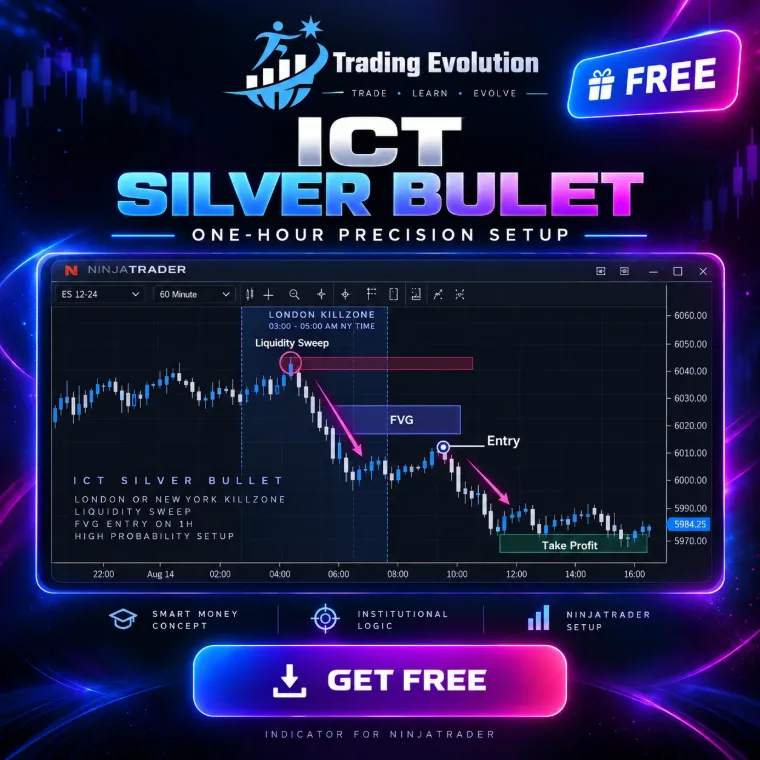
It follows the three one-hour Silver Bullet windows (03:00, 10:00 and 14:00 New York time) and finds the ICT sequence inside them: a liquidity sweep, a market structure shift (MSS) with displacement, then a Fair Value Gap formed in the window. Entry in the FVG, stop beyond the sweep, target on the opposing liquidity.
The download takes two steps, from the “Free indicators” section of the home page.
- Platform
- NinjaTrader 8
- File
- NinjaScript (.cs), readable source code
- Calculation
- /outils/calculateur-position-futures,Futures position size calculator,How many contracts for a given risk, with each contract’s tick value.
- Price
- Free
- File updated on
- 8 October 2026
How the indicator works
- Windows. Three windows enabled by default: London SB (03:00-04:00), NY AM SB (10:00-11:00) and NY PM SB (14:00-15:00), plus a fourth custom one. Each window is shaded on the chart.
- Liquidity. Swing highs and lows, equal highs / lows (EQH / EQL), previous day high / low (PDH / PDL) and the Asia, London and New York AM session extremes. The nearest unswept pools are shown as the draw on liquidity.
- Strict mode (default). A liquidity sweep, then an MSS with displacement (body of at least 1 × ATR, confirmed on close), then an FVG, all inside the window. The sweep may start up to 15 minutes before the open; the retrace into the FVG may come up to 15 minutes after the close.
- Classic mode. The first displacement FVG of the window toward liquidity, without requiring a sweep.
- Trade. Entry in the FVG (Proximal, CE = 50% by default, or Distal), stop beyond the sweep extreme, target on the nearest opposing liquidity pool that meets a minimum framework (20 ticks or 2 × ATR, whichever is larger) and an R:R of at least 1.5. One setup per window by default.
- Tracking. Labels, dashboard and sound alerts: setup armed, entry, target or stop. FVGs rejected for lack of distant enough liquidity can be shown in grey.
Markets and timeframes
- Any instrument loaded in NinjaTrader 8: index futures (ES, NQ…), energy, metals, forex. Thresholds combine a floor in ticks with an ATR multiple, so they stay consistent from one market to the next.
- Times are New York time. With the “NewYorkAuto” reference, the conversion from your chart time zone and daylight saving are handled automatically.
- Calculated on every tick in real time; by default the whole loaded history is analysed.
Requirements
- NinjaTrader 8, a desktop platform for Windows. The indicator is free; NinjaTrader is third-party software with its own terms, and it may cost money depending on how you use it (licence, live trading).
- Data. The chart bars are enough: no Tick Replay or market depth needed. Your connection’s data may cost money depending on the exchange and the subscription.
Settings
Each setting is named exactly as NinjaTrader shows it, with its default value read directly from the source code (.cs).
1. Silver Bullet Model
| Setting | Default | What it does |
|---|---|---|
| Mode | Strict | Strict (ICT) = liquidity sweep + MSS with displacement + FVG, all inside the window. Classic = first displacement FVG of the window toward liquidity. |
| Allow longs | yes | |
| Allow shorts | yes | |
| Max setups per window | 1 | ICT: one bullet per window. |
| First FVG only (Classic mode) | yes | |
| Sweep accepted before the window (min) | 15 | The sweep may start up to N minutes before the open; the MSS and the FVG must be inside the window. 0 = everything inside the window. |
| Entry accepted after the window (min) | 15 | The FVG must form inside the window; the retrace may come up to N minutes later. |
| Max time in trade (min) | 120 |
2. Windows (New York Time)
| Setting | Default | What it does |
|---|---|---|
| Time reference | NewYorkAuto | NewYorkAuto = New York times (daylight saving handled), converted from the chart time zone. |
| Manual offset (hours) | 0 | |
| Window 1 - enabled | yes | |
| Window 1 - name | London SB | |
| Window 1 - start (HHMM) | 300 | 300 = 03:00 |
| Window 1 - end (HHMM) | 400 | |
| Window 2 - enabled | yes | |
| Window 2 - name | NY AM SB | |
| Window 2 - start (HHMM) | 1000 | |
| Window 2 - end (HHMM) | 1100 | |
| Window 3 - enabled | yes | |
| Window 3 - name | NY PM SB | |
| Window 3 - start (HHMM) | 1400 | |
| Window 3 - end (HHMM) | 1500 | |
| Window 4 - enabled | no | |
| Window 4 - name | Perso | |
| Window 4 - start (HHMM) | 0 | |
| Window 4 - end (HHMM) | 0 |
3. Liquidity (Draw on Liquidity)
| Setting | Default | What it does |
|---|---|---|
| Swing strength | 3 | Bars on each side for a high / low to become a liquidity pool. |
| Equal highs / lows (EQH / EQL) | yes | |
| Equal level tolerance (ticks) | 2 | |
| Equal level tolerance (x ATR) | 0.10 | |
| Previous day high / low (PDH / PDL) | yes | |
| Trading day start (NY hour) | 18 | 18 = CME futures trading day (18:00 -> 17:00). 0 = midnight. |
| Session highs / lows (Asia, London, NY AM) | yes | |
| Level memory (bars) | 3000 |
4. Sweep, MSS and FVG
| Setting | Default | What it does |
|---|---|---|
| Min sweep beyond the level (ticks) | 1 | |
| Max bars to close back (sweep) | 3 | Beyond this, price has accepted the level: it is a breakout, not a sweep. |
| MSS reference swing strength | 2 | |
| MSS requires a close | yes | |
| ATR period | 14 | |
| Min displacement (x ATR) | 1.0 | Body of the breaking candle in ATR multiples. 0 = off. |
| Min FVG size (ticks) | 1 | |
| Min FVG size (x ATR) | 0.05 |
5. Trade
| Setting | Default | What it does |
|---|---|---|
| Entry in the FVG | CE | Proximal = first touch, CE = 50%, Distal = full fill. |
| Stop | Auto | Auto = beyond the sweep extreme (strict mode) or FVG candle 1 (classic mode). |
| Stop buffer (ticks) | 1 | |
| Stop buffer (x ATR) | 0.05 | |
| Target | Liquidity | Liquidity = nearest opposing liquidity pool that meets the minimum framework (ICT). FixedRR = multiple of the risk. |
| Min framework entry -> target (ticks) | 20 | ICT: at least 5 handles on indices = 20 ticks ES / NQ. |
| Min framework entry -> target (x ATR) | 2.0 | Makes the framework valid on every market. The larger of the two applies. |
| R:R minimum | 1.5 | |
| Fixed R:R (FixedRR mode) | 2.0 |
6. Real Time
| Setting | Default | What it does |
|---|---|---|
| Calculate on every tick (real time) | yes | |
| History analysed (bars, 0 = all) | 0 |
7. Display
| Setting | Default | What it does |
|---|---|---|
| Window background | yes | |
| Window names | yes | |
| Window opacity (%) | 10 | |
| Draw on liquidity (DOL) | yes | Nearest unswept pools above and below price. |
| DOL levels per side | 3 | |
| Sweep | yes | |
| MSS | yes | |
| FVG | yes | |
| Entry / stop / target | yes | |
| Rejected setups (grey) | no | Shows valid FVGs refused for lack of liquidity far enough away. |
| Labels | yes | |
| Dashboard | yes | |
| Setups kept on chart (0 = all) | 60 | |
| Zone opacity (%) | 22 |
8. Alerts
| Setting | Default | What it does |
|---|---|---|
| Alert on window open | no | |
| Alert on setup armed | yes | |
| Alert on entry | yes | |
| Alert on target / stop | no | |
| Sound file | Alert1.wav | |
| Alert rearm (seconds) | 15 |
9. Trading Evolution
| Setting | Default | What it does |
|---|---|---|
| Show logo | yes | |
| Show name | yes | |
| Logo position | TopLeft | |
| Logo size (px) | 54 | |
| Logo opacity (%) | 55 | |
| Diagnostic mode (Output window) | no |
13 colours you can customise in NinjaTrader's Colours tab.
Installation in NinjaTrader 8
- Download the free pack (ZIP file) that contains the indicator from the Free indicators section of the home page.
- In NinjaTrader 8, open Tools › Import › NinjaScript Add-On, choose the ZIP file, then restart NinjaTrader.
- Activate your free license: Control Center › New › Trading Evolution License, then save your key.
- On a chart, open the indicator list (right-click › Indicators) and add “TRADING EVOLUTION - Silver Bullet”.
Common problems and fixes
- Nothing shows. Load enough history (several days intraday): the model needs swings and complete sessions to detect a setup.
- The indicator is not in the list. Check that the pack import (Tools › Import › NinjaScript Add-On) finished without an error, then restart NinjaTrader. NinjaTrader compiles every script together: an error in another installed script can block the import, so fix or remove that script. If the tool shows a license message, save your free key in Control Center › New › Trading Evolution License.
- “Already contains a definition” error. An older copy of the same indicator exists under another file name: delete it, then compile again.
Limitations
- It is an indicator, not an automated strategy: it sends no orders and manages no positions.
- Thresholds (swing strength, displacement, FVG size, minimum R:R) are setting choices, not official ICT rules. Adjust them to your market and timeframe.
- The “won” or “lost” trades shown refer to the loaded history. They say nothing about future results.
- No signal is guaranteed: futures trading involves a risk of losing capital.
Frequently asked questions
Is the indicator free?
Yes, the indicator is free (free pack and free license), with no subscription. It requires NinjaTrader 8, third-party software with its own terms of use.
Does it place orders?
No. It draws the setups and can play sound alerts, but you decide and you place your own orders.
What are the Silver Bullet window times?
03:00-04:00, 10:00-11:00 and 14:00-15:00 New York time. All three can be edited, and a fourth custom window can be enabled.
What is the difference between Strict and Classic mode?
Strict mode requires a liquidity sweep, an MSS with displacement and an FVG, all inside the window. Classic mode takes the first displacement FVG of the window toward liquidity.
Related concepts and tools
Other free NinjaTrader 8 indicators
Related articles
Educational content. These indicators are not investment advice and guarantee no result. Futures trading involves a risk of loss that can exceed the initial investment. Terms of use · Disclaimers