
SMT Divergence indicator for NinjaTrader 8
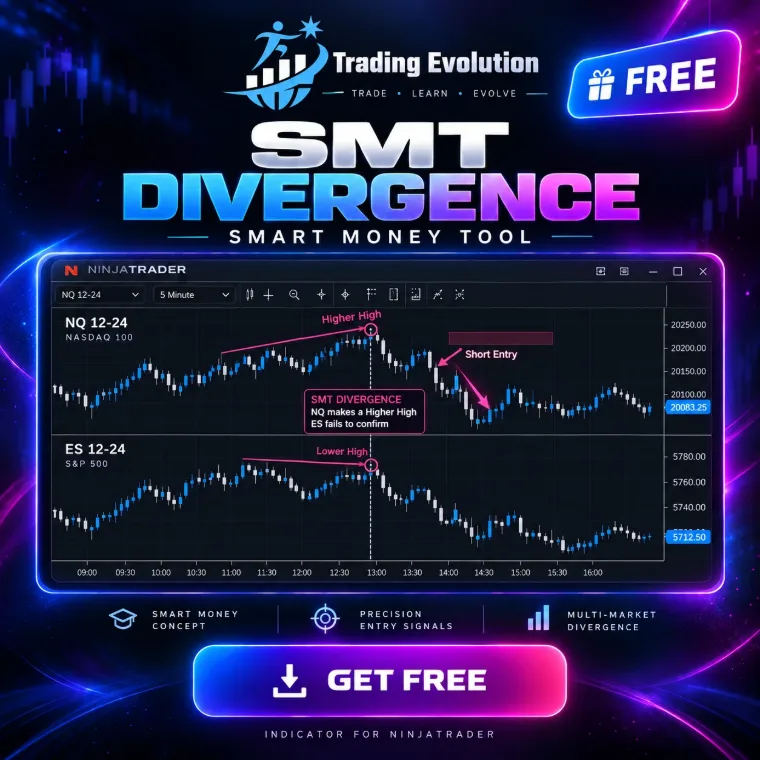
It compares the chart instrument with a correlated market (NQ and ES, EURUSD and GBPUSD, or an inverse pair such as EURUSD and DXY). At a shared swing or the previous day high / low, one market takes the liquidity while the other fails: that is the SMT divergence. The indicator then waits for a market structure shift before offering an entry.
The download takes two steps, from the “Free indicators” section of the home page.
- Platform
- NinjaTrader 8
- File
- NinjaScript (.cs), readable source code
- Calculation
- /outils/calculateur-position-futures,Futures position size calculator,How many contracts for a given risk, with each contract’s tick value.
- Price
- Free
- File updated on
- 8 October 2026
How the indicator works
- Comparison market. Left empty, the partner is picked automatically (NQ↔ES, MNQ↔MES, YM and RTY→ES, 6E↔6B, GC↔SI, EURUSD↔GBPUSD, AUDUSD↔NZDUSD…). You can also type any instrument. With inverse correlation (EURUSD and DXY), the second market is flipped before the comparison.
- Divergence. On swings and the previous day high / low: bearish SMT when one market makes a higher high and the other a lower high; bullish SMT when one makes a lower low and the other a higher low. Swings of both markets within 2 bars are treated as the same swing.
- Confirmation. By default the sweeping market must stop extending for 2 bars (SwingTop); you can also require a close back through the level (CloseBack), or the first of both.
- Trade. After a confirmed SMT: a structure shift on the chart instrument with displacement (0.8 × ATR by default), entry in the middle of the displacement FVG, stop beyond the SMT extreme, target on the opposing liquidity that pays at least 2 R.
- Display. The comparison market can be drawn over price, scaled to the visible range, so the divergence is visible at a glance. Alerts on confirmed SMT and on entry.
Markets and timeframes
- Two instruments in NinjaTrader 8: the chart instrument and the comparison market, which the indicator loads itself. A futures root alone takes the chart’s contract month.
- By default the indicator works around the clock. Tick “Confirm only inside killzones” to keep only divergences confirmed inside the enabled New York killzones.
- Calculated on every tick in real time; by default the whole loaded history is analysed.
Requirements
- NinjaTrader 8, a desktop platform for Windows. The indicator is free; NinjaTrader is third-party software with its own terms, and it may cost money depending on how you use it (licence, live trading).
- Data. The chart bars are enough: no Tick Replay or market depth needed. Your connection’s data may cost money depending on the exchange and the subscription.
Settings
Each setting is named exactly as NinjaTrader shows it, with its default value read directly from the source code (.cs).
1. Comparison
| Setting | Default | What it does |
|---|---|---|
| Comparison instrument | Empty = automatic partner (NQ<->ES, MNQ<->MES, YM/RTY->ES, 6E<->6B, GC<->SI, EURUSD<->GBPUSD, AUDUSD<->NZDUSD...). Or type any instrument, e.g. ES 12-26, GBPUSD, DX 12-26. A futures root alone takes the chart's contract month. | |
| Correlation | Positive | Positive (NQ/ES, EURUSD/GBPUSD) or Inverse (EURUSD/DXY): the inverse market is flipped before the comparison. |
| Correlation check (bars) | 100 |
2. SMT Detection
| Setting | Default | What it does |
|---|---|---|
| Swing strength | 3 | Bars on each side of a swing high / low (strict on the left: equal highs stay liquidity). |
| Sync window (bars) | 2 | Swings of both markets within this many bars are the same swing; a market that takes the level within this window is not divergent. |
| Reference lookback (bars) | 120 | |
| Swing highs / lows | yes | |
| Previous day high / low | yes | |
| Min sweep (ticks) | 1 | |
| Confirmation | SwingTop | SwingTop = the sweeping market stops extending for the confirmation bars. CloseBack = it closes back through the level. Either = the first of both. |
| Confirmation bars | 2 | |
| Max bars forming | 20 |
3. Trade
| Setting | Default | What it does |
|---|---|---|
| Offer trades | yes | After a confirmed SMT: market structure shift on the chart instrument, then entry. |
| Allow longs | yes | |
| Allow shorts | yes | |
| Bars allowed for the MSS | 30 | |
| Min displacement (x ATR) | 0.8 | Body of the candle that shifts structure. 0 = off. |
| ATR period | 14 | |
| Entry | FvgCe | FvgCe = middle of the FVG left by the displacement (the shift close when there is none). MssClose = at the close of the shift candle. |
| Min FVG size (ticks) | 1 | |
| Min FVG size (x ATR) | 0.05 | |
| Bars allowed to fill the FVG | 20 | |
| Stop buffer beyond the SMT extreme (ticks) | 2 | |
| Stop buffer beyond the SMT extreme (x ATR) | 0.1 | |
| Target | OppositeLiquidity | OppositeLiquidity = nearest untouched swing or previous day level on the other side that pays the minimum R:R. FixedRR = multiple of the risk. |
| Min distance to target (ticks) | 8 | |
| Min distance to target (x ATR) | 1.0 | |
| Min R:R | 2.0 | |
| Fixed R:R | 2.0 | |
| Fall back to fixed R:R | yes |
4. Killzones (New York Time)
| Setting | Default | What it does |
|---|---|---|
| Confirm only inside killzones | no | Off (default) = the indicator works around the clock. On = divergences only confirm inside the enabled killzones. |
| London | yes | |
| London start (HHMM) | 200 | |
| London end (HHMM) | 500 | |
| New York AM | yes | |
| New York AM start (HHMM) | 700 | |
| New York AM end (HHMM) | 1000 | |
| New York PM | yes | |
| New York PM start (HHMM) | 1330 | |
| New York PM end (HHMM) | 1600 | |
| Asia | no | |
| Asia start (HHMM) | 2000 | |
| Asia end (HHMM) | 0 | An end earlier than the start wraps past midnight. |
| Time reference | NewYorkAuto | NewYorkAuto = New York times (daylight saving handled), converted from the chart time zone. |
| Manual offset (hours) | 0 |
5. Real Time
| Setting | Default | What it does |
|---|---|---|
| Calculate on every tick (real time) | yes | |
| History analysed (bars, 0 = all) | 0 |
6. Display
| Setting | Default | What it does |
|---|---|---|
| Comparison overlay | yes | The comparison market drawn over price, scaled to the visible range. |
| Overlay opacity (%) | 70 | |
| SMT signals | yes | |
| Keep invalidated / expired SMT | no | |
| MSS level while waiting | yes | |
| Entry / stop / target | yes | |
| Labels | yes | |
| Dashboard | yes | |
| Signals kept on chart (0 = all) | 20 | |
| Zone opacity (%) | 20 |
7. Alerts
| Setting | Default | What it does |
|---|---|---|
| Alert on SMT forming | no | |
| Alert on SMT confirmed | yes | |
| Alert on entry | yes | |
| Alert on target / stop | no | |
| Sound file | Alert4.wav | File name from the NinjaTrader sounds folder (or a full path). Empty = silent. |
| Alert rearm (seconds) | 15 |
8. Trading Evolution
| Setting | Default | What it does |
|---|---|---|
| Show logo | yes | |
| Show name | yes | |
| Logo position | TopLeft | |
| Logo size (px) | 54 | |
| Logo opacity (%) | 55 | |
| Diagnostic mode (Output window) | no |
7 colours you can customise in NinjaTrader's Colours tab.
Installation in NinjaTrader 8
- Download the free pack (ZIP file) that contains the indicator from the Free indicators section of the home page.
- In NinjaTrader 8, open Tools › Import › NinjaScript Add-On, choose the ZIP file, then restart NinjaTrader.
- Activate your free license: Control Center › New › Trading Evolution License, then save your key.
- On a chart, open the indicator list (right-click › Indicators) and add “TRADING EVOLUTION - SMT Divergence”.
Common problems and fixes
- Nothing shows. Load enough history (several days intraday): the model needs swings and complete sessions to detect a setup.
- The indicator is not in the list. Check that the pack import (Tools › Import › NinjaScript Add-On) finished without an error, then restart NinjaTrader. NinjaTrader compiles every script together: an error in another installed script can block the import, so fix or remove that script. If the tool shows a license message, save your free key in Control Center › New › Trading Evolution License.
- “Already contains a definition” error. An older copy of the same indicator exists under another file name: delete it, then compile again.
Limitations
- It is an indicator, not an automated strategy: it sends no orders and manages no positions.
- Thresholds (swing strength, displacement, FVG size, minimum R:R) are setting choices, not official ICT rules. Adjust them to your market and timeframe.
- The “won” or “lost” trades shown refer to the loaded history. They say nothing about future results.
- No signal is guaranteed: futures trading involves a risk of losing capital.
Frequently asked questions
Is the indicator free?
Yes, the indicator is free (free pack and free license), with no subscription. It requires NinjaTrader 8, third-party software with its own terms of use.
Does it place orders?
No. It draws the setups and can play sound alerts, but you decide and you place your own orders.
Which comparison market should I use?
Leave the field empty for the automatic partner (for example ES for NQ, GBPUSD for EURUSD). For an inverse pair such as EURUSD and DXY, type the instrument and pick Inverse correlation.
Do I need to open the second market on another chart?
No. The indicator loads the comparison market’s series itself and can draw it over price.
Related concepts and tools
Other free NinjaTrader 8 indicators
Related articles
Educational content. These indicators are not investment advice and guarantee no result. Futures trading involves a risk of loss that can exceed the initial investment. Terms of use · Disclaimers