
TEVO Big Trades: large executed trades as bubbles
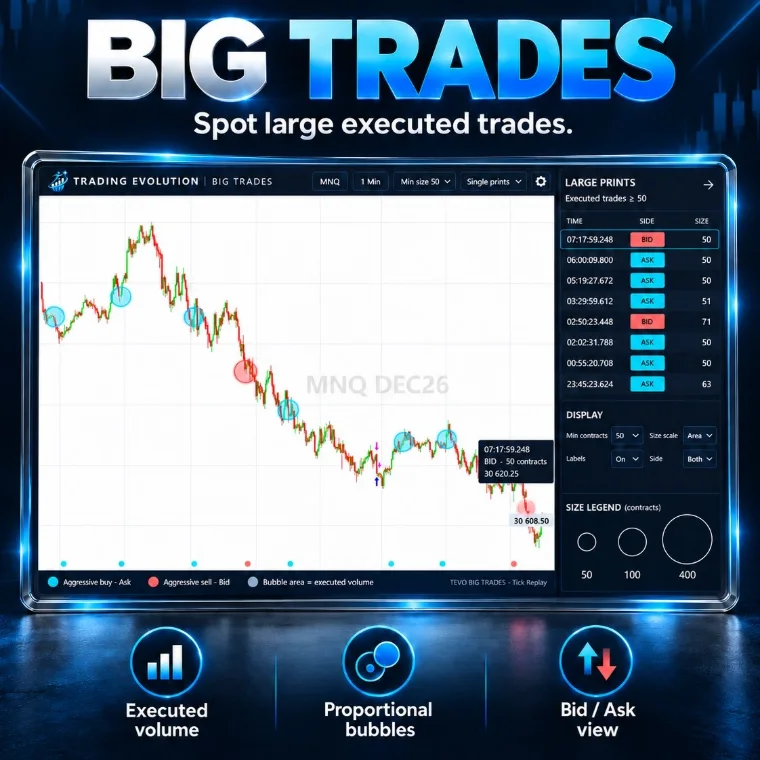
TEVO Big Trades draws trades of at least 50 contracts (adjustable) on the chart at their price and time: cyan for an aggressive buy at the ask, red for an aggressive sell at the bid, with a bubble whose area follows the volume.
The download takes two steps, from the “Free indicators” section of the home page.
- Platform
- NinjaTrader 8
- File
- NinjaScript (.cs), readable source code
- Calculation
- On every tick (real time)
- Price
- Free
- File updated on
- 8 October 2026
What the indicator does
- Size filter. Only trades of at least 50 contracts show (Min contracts), with an optional maximum. The minimum can also be changed from the chart header (Min size menu).
- Single prints or Aggregated. Single prints = every trade as the data feed reports it. Aggregated = consecutive fills on the same side, with the same time stamp and a price that does not go back, are summed: the aggressive order that swept several levels.
- Side. At the ask or higher = aggressive buy; at the bid or lower = aggressive sell; in between, the tick rule decides. UpDownTick mode for forex.
- Bubbles. Area proportional to volume (the minimum size = the smallest bubble), or linear, or fixed; size written inside. Hover = time to the millisecond, size and price; click = pinned tooltip.
- Markers. Time dots under the chart, last price tag, legend; a LARGE PRINTS table can show on the right (off by default); optional sound alert.
Data and markets
- Mostly futures (NQ, ES, CL, GC…): 50 contracts is a starting point for NQ; adapt the size to your market’s average volume.
- Any timeframe: the bubble sits at the trade’s time and price.
- History is built with Tick Replay or, without it, with a hidden 1-tick series (History source = TickSeries); in real time every trade is added as it prints.
Requirements: what is free and what may cost money
- NinjaTrader 8, a desktop platform for Windows. The indicator is free; NinjaTrader is third-party software with its own terms, and it may cost money depending on how you use it (licence, live trading).
- Market data. Prices, volume and market depth come from your connection (broker or data provider). Depending on the exchange and the subscription, this data may be billed: check your provider’s terms.
- Exact history with Tick Replay. Enable “Show Tick Replay” in Tools › Options › Market Data, then tick Tick Replay in the chart’s Data Series window. Your provider must supply tick history with the bid and ask; the chart then loads more slowly.
Reading example (educational)
Price comes back to the previous day’s low. Two large red bubbles (aggressive sells of 240 and 400 contracts) print at the level, but price does not go lower and a cyan bubble follows just above. You see where big orders hit; whether they were absorbed takes watching what price does next.
Settings
Each setting is named exactly as NinjaTrader shows it, with its default value read directly from the source code (.cs).
1. Big trades
| Setting | Default | What it does |
|---|---|---|
| Min contracts | 50 | Smallest executed size shown (contracts, shares or units). Also on the chart : Min size menu. |
| Max contracts (0 = no limit) | 0 | |
| Prints | SinglePrints | Single prints = every trade as the data feed reports it. Aggregated = consecutive fills of the same side with the same time stamp (the aggressive order that swept the book) summed into one print. |
| Aggregation window (ms) | 0 | Aggregated prints : fills of the same side closer than this are joined. 0 = same time stamp only (recommended). |
| Side detection | BidAsk | BidAsk = a trade at the ask or higher is an aggressive buy, at the bid or lower an aggressive sell (NinjaTrader default). UpDownTick = up tick / down tick (forex). |
| Side | Both | Both, buys only or sells only. Also on the chart : Side menu. |
| History source | TickReplay | TickReplay (default) = uses Tick Replay when it is enabled on the chart (F6 > Data Series), otherwise loads a 1-tick series automatically : the history is always filled. TickSeries = same. LiveOnly = no history, live trades only (lightest). Live trades are always added in real time. |
| Calculate on every tick (real time) | yes |
2. Display
| Setting | Default | What it does |
|---|---|---|
| Size scale | Area | Area = bubble area proportional to the volume (the minimum size = the smallest bubble). Linear = radius proportional (8 x the minimum = the largest). Fixed = one size. |
| Labels (size in the bubble) | yes | |
| Smallest bubble radius (px) | 16 | |
| Largest bubble radius (px) | 50 | |
| Bubble fill opacity (%) | 38 | |
| Tooltip on the latest print | yes | Hover a bubble to see its details ; click a bubble or a table row to pin it. |
| Time markers (bottom dots) | yes | |
| Last price tag | yes | |
| Header | yes | |
| Legend | yes |
3. Large prints table
| Setting | Default | What it does |
|---|---|---|
| Show large prints table (on / off) | no | Off by default : bubbles only on the chart. On = LARGE PRINTS table, DISPLAY menu and size legend on the right. Also on the chart : gear menu > Prints table. |
| Panel width (px) | 330 | |
| Rows in the table | 8 | |
| Size legend | yes | |
| Make room for the panel (right margin) | yes | Widens the chart right margin so the last bars stay visible left of the panel (restored when the indicator is removed). |
5. Alerts
| Setting | Default | What it does |
|---|---|---|
| Alert on each big trade | no | |
| Alert min size (0 = min contracts) | 0 | |
| Sound file | Alert2.wav | File name from the NinjaTrader sounds folder (or a full path). Empty = silent. |
6. Trading Evolution
| Setting | Default | What it does |
|---|---|---|
| Show logo | yes | |
| Diagnostic mode (Output window) | no |
7 colours you can customise in NinjaTrader's Colours tab.
Installation in NinjaTrader 8
- Download the free pack (ZIP file) that contains the indicator from the Free indicators section of the home page.
- In NinjaTrader 8, open Tools › Import › NinjaScript Add-On, choose the ZIP file, then restart NinjaTrader.
- Activate your free license: Control Center › New › Trading Evolution License, then save your key.
- On a chart, open the indicator list (right-click › Indicators) and add “TEVO Big Trades”.
Common problems and fixes
- No bubbles. The minimum size may be too high for this market: lower Min contracts from the Min size menu in the header.
- No history. Enable Tick Replay, or set History source = TickSeries and reload the indicator.
- The indicator is not in the list. Check that the pack import (Tools › Import › NinjaScript Add-On) finished without an error, then restart NinjaTrader. NinjaTrader compiles every script together: an error in another installed script can block the import, so fix or remove that script. If the tool shows a license message, save your free key in Control Center › New › Trading Evolution License.
- “Already contains a definition” error. An older copy of the same indicator exists under another file name: delete it, then compile again.
Limitations
- The data feed sometimes splits one order into several trades: Aggregated mode joins them by identical time stamp, but cannot rebuild everything.
- A large trade shows executed volume, not the intent or final position of whoever sent it.
- Without bid / ask (history without Tick Replay), the side is approximated with the tick rule.
- No bubble is a guaranteed signal: futures trading involves a risk of losing capital.
Frequently asked questions
Is the indicator free?
Yes: the indicator is free (free pack and free license), with no subscription, and its source code is readable. It runs in NinjaTrader 8; the platform and market data have their own terms, which may involve fees.
Do I need to import a ZIP file?
Yes. The tool is part of the free Order Flow pack, a ZIP file: in NinjaTrader 8, open Tools › Import › NinjaScript Add-On, choose the ZIP, then restart NinjaTrader. Then activate your free license: Control Center › New › Trading Evolution License.
Which minimum size should I use?
50 contracts by default, designed for NQ. On a busier market (ES) or a micro contract, adjust it so only truly unusual trades remain.
Single prints or Aggregated?
Single prints shows every trade reported by the feed. Aggregated sums consecutive fills on the same side with the same time stamp, to rebuild the full aggressive order that went through several prices.
Can a strategy use it?
It exposes the size, side, price and time of the last large trade (LastBigTradeSize, LastBigTradeSide, LastBigTradePrice, LastBigTradeTime), readable from NinjaScript.
Related concepts and tools
Other free NinjaTrader 8 indicators
Related articles
Educational content. These indicators are not investment advice and guarantee no result. Futures trading involves a risk of loss that can exceed the initial investment. Terms of use · Disclaimers